Budgets
A budget is a spending limit in dollars. It can sit on a person, a team or the organization, and over a day, a week or a month. That is up to nine limits reaching one person, and any of them can be the one that stops them.
Each limit has two lines:
- Soft limit: the warning line. Requests are still served, except on routes you marked as stopping there. The engineer is told which routes still work.
- Hard limit: the stop line. Every request that budget governs is refused until the window resets or somebody raises the limit.
Limits are set on People & teams. Routes react to budgets and cannot set one.
Set a limit on a team
Section titled “Set a limit on a team”- Open People & teams → Teams and click the team.
- Under Limits, pick the window: Daily, Weekly or Monthly. The panel opens on Monthly. These are three separate budgets, so check which tab you are on before typing a figure.
- Switch Hard limit to On and type an amount. Do the same for Soft limit if you want a warning line before it.
- Look at the grid beside the panel (see the next section), then press Save changes.
It is in force from the next request. A tab with a limit set shows a mark, so you can see at a glance which windows are capped.
For a person, open People & teams → People and click them. The panel is the same.
For the whole organization, open People & teams → Teams and click the first card, This organization.
To remove a limit, switch both lines Off and save.
Read what actually stops somebody
Section titled “Read what actually stops somebody”Beside every limit panel is a grid titled Every cap that reaches them: scope down the side (personal, each team, the organization) and window across the top.
In each window, the smallest hard limit is the one that binds. It is the one highlighted cell in the grid, and the sentence underneath says it in words, for example: “No personal monthly cap, so Platform’s limit of $5,000.00 is what stops them.”
The grid updates as you type, before you save. Use that. Raising somebody’s monthly cap often reveals that a daily limit on their team now binds first.
Only hard limits count here. A budget with only a soft limit stops nobody.
Find the accounts nothing stops
Section titled “Find the accounts nothing stops”At the top of People & teams, a strip of flags counts accounts that need attention. Click a flag to filter the list to exactly those accounts:
- accounts have no cap above them: no hard limit on the person, on any of their teams, or on the organization.
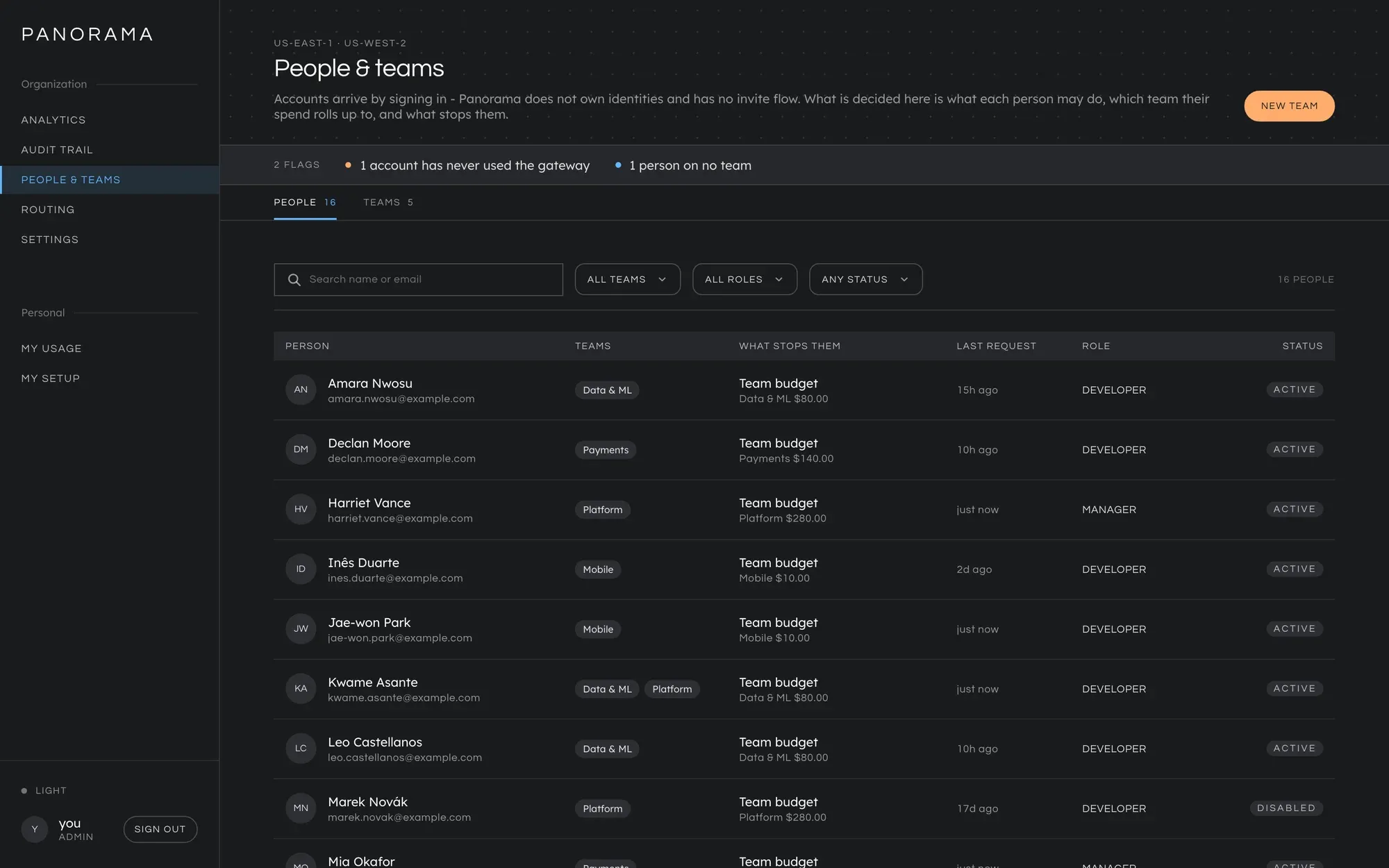
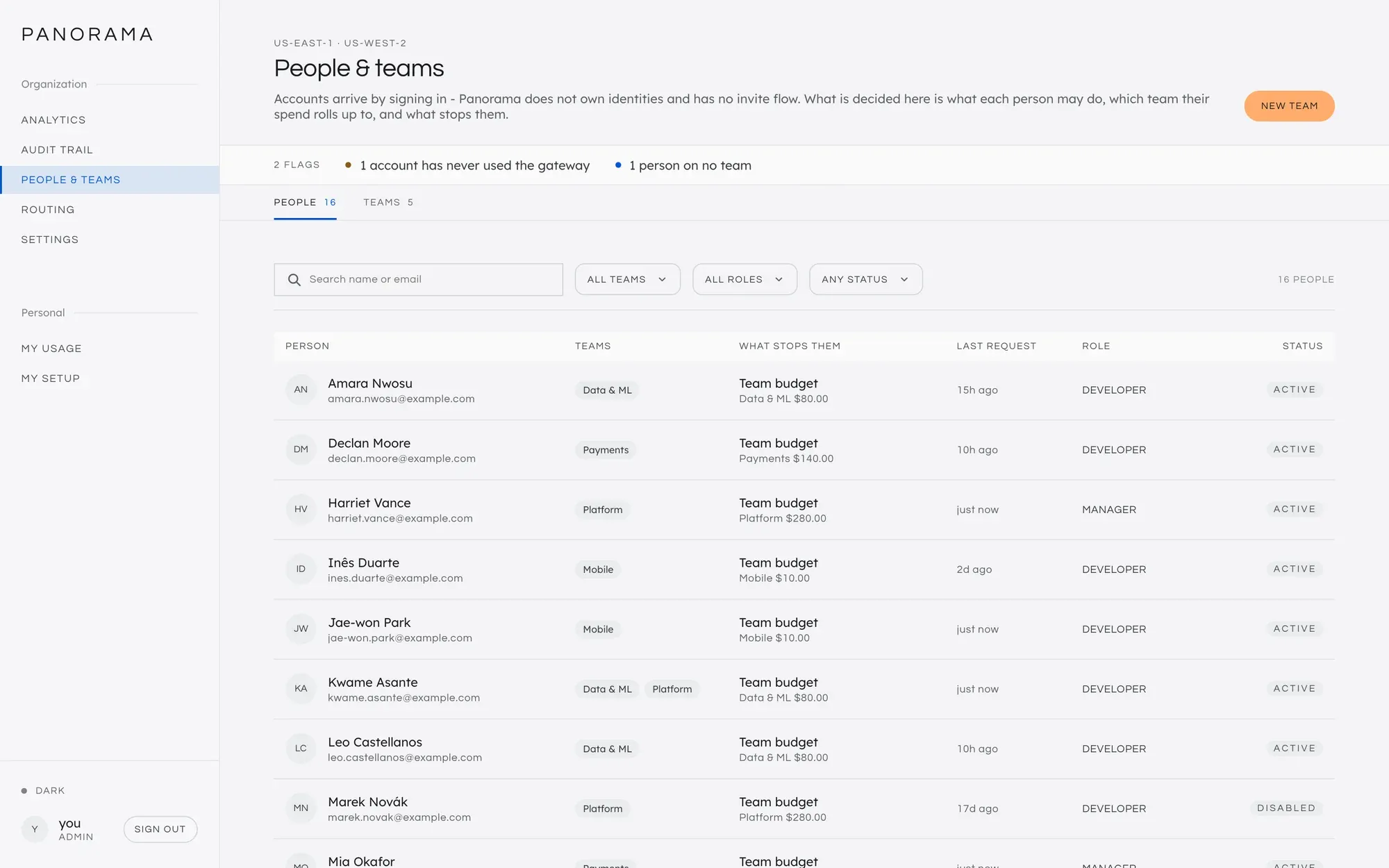
- accounts have never used the gateway
- people on no team: their spend rolls up to the organization only.
The roster’s What stops them column gives the same answer per person: Personal cap, Team budget, Organization or No cap. Panorama never says “unlimited”. A limit nobody set reads not set.
What an engineer sees
Section titled “What an engineer sees”Past a soft limit, on a route that keeps serving, nothing changes for them.
The response carries two headers, which clients ignore and you can log:
x-panorama-budget-state: over_soft and x-panorama-budget-warning.
Past a soft limit, on a route that stops, they get a refusal naming the routes still served. See Routes.
Past a hard limit, every request is refused with:
Panorama stopped this request: the monthly team budget is used up.
Your team has used $5,000.00 of the monthly $5,000.00 limit.The limit resets at 2026-10-01 00:00 UTC (in 11 days).
There is no way to exempt one request or one person from a hard limit. Raise the limit.
Both also appear on Analytics → Attention, with a link back to the budget.
Good to know
Section titled “Good to know”- Windows are UTC. A day is a UTC day, a week starts on Monday, a month is a calendar month. Nothing carries forward.
- A limit can be overshot slightly. A request is priced when it finishes, so a limit is checked against spend as of the last completed request. Several long requests already in flight can take a budget a little past its line. This is the price of never touching the database on the request path.
- A refused request costs nothing. A request that was blocked or refused never counts against the budget that blocked it.
- Unpriced requests are not in the figure. If a model has no published rate, its requests are counted separately and the refusal message says the real figure is higher.
- Deleting a team leaves its budget behind, visibly, for you to remove. Deleting a team is refused while a service token bills it.
- A service token’s spend counts against its team.
Budgets as a file
Section titled “Budgets as a file”budgets: - scope: team id: platform period: month soft_limit: 4000.00 hard_limit: 5000.00
- scope: org period: month name: deployment soft_limit: 800.00 hard_limit: 1000.00scope is org, team or user. id is a team slug or a person’s email,
and is left out for org. period is day, week or month. Apply it with
panorama policy apply, and read the caution about
a policy file being the whole policy
first. See the Policy file reference.
Budgets are not cost centers
Section titled “Budgets are not cost centers”A budget limits what a person or team may spend, and it blocks. A cost center reports what a product or project cost, and it never blocks.
This manual is licensed underCC BY 4.0. Code samples in it are part of Panorama, licensed under theGNU AGPL v3.0 only.