Single sign-on
People sign in to the console through your identity provider, over OpenID Connect. Panorama keeps no passwords and creates no accounts of its own: an account appears the first time somebody signs in, and their role comes from the groups your provider says they are in.
Single sign-on is the part of a deployment that most often goes wrong, and usually silently. This section has three pages:
- This page: how it works, and the steps.
- Identity provider guides: what to do at Entra ID, Okta, Keycloak, Cognito, Auth0, PingOne and Google Workspace, and why each one behaves as it does.
- SSO troubleshooting: every message and every check, by symptom.
How sign-in works
Section titled “How sign-in works”Knowing these six things explains most of what goes wrong.
- Panorama is a confidential OIDC client using the authorization code flow. It needs an issuer URL, a client id and a client secret.
- It reads the ID token, and only the ID token. Not the access token and not the userinfo endpoint. A claim your provider puts anywhere else does not exist as far as Panorama is concerned.
- From that token it uses four things: the subject (
sub), theemail, a display name (name, thenpreferred_username, thengiven_name), and one claim listing group membership, calledgroupsunless you say otherwise. - The role is recomputed from groups at every sign-in. That is what makes removing somebody from a group at your provider remove their access here. If somebody is in several mapped groups, the strongest role wins.
- Group names are matched as plain strings, ignoring case. Panorama does not know what a group is at your provider. It compares the strings in the token with the strings in your mapping. If your provider sends IDs, you map IDs.
- The first person ever to sign in becomes an administrator, whatever their groups. Otherwise a new deployment would have nobody able to finish setting it up.
Connect your provider
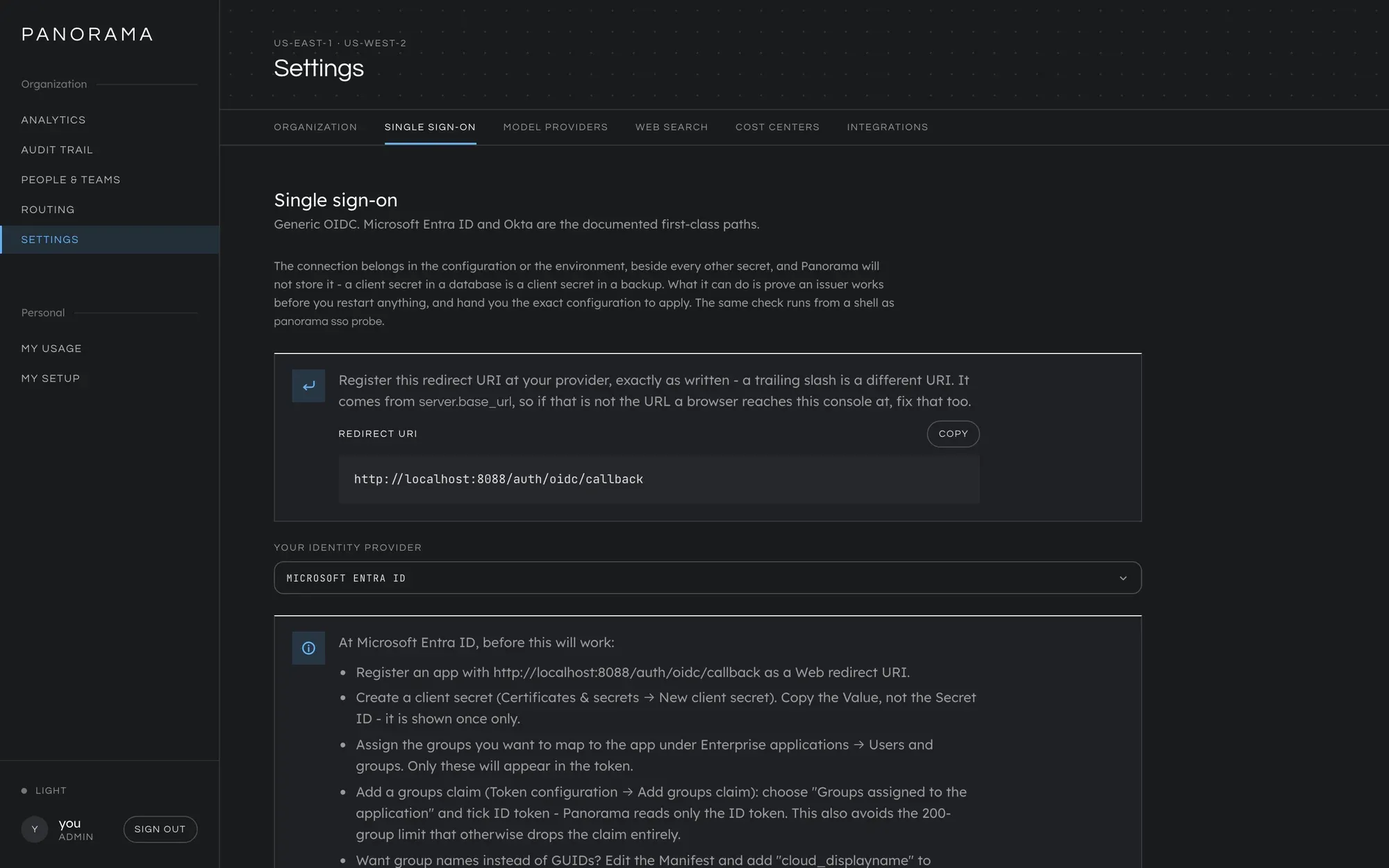
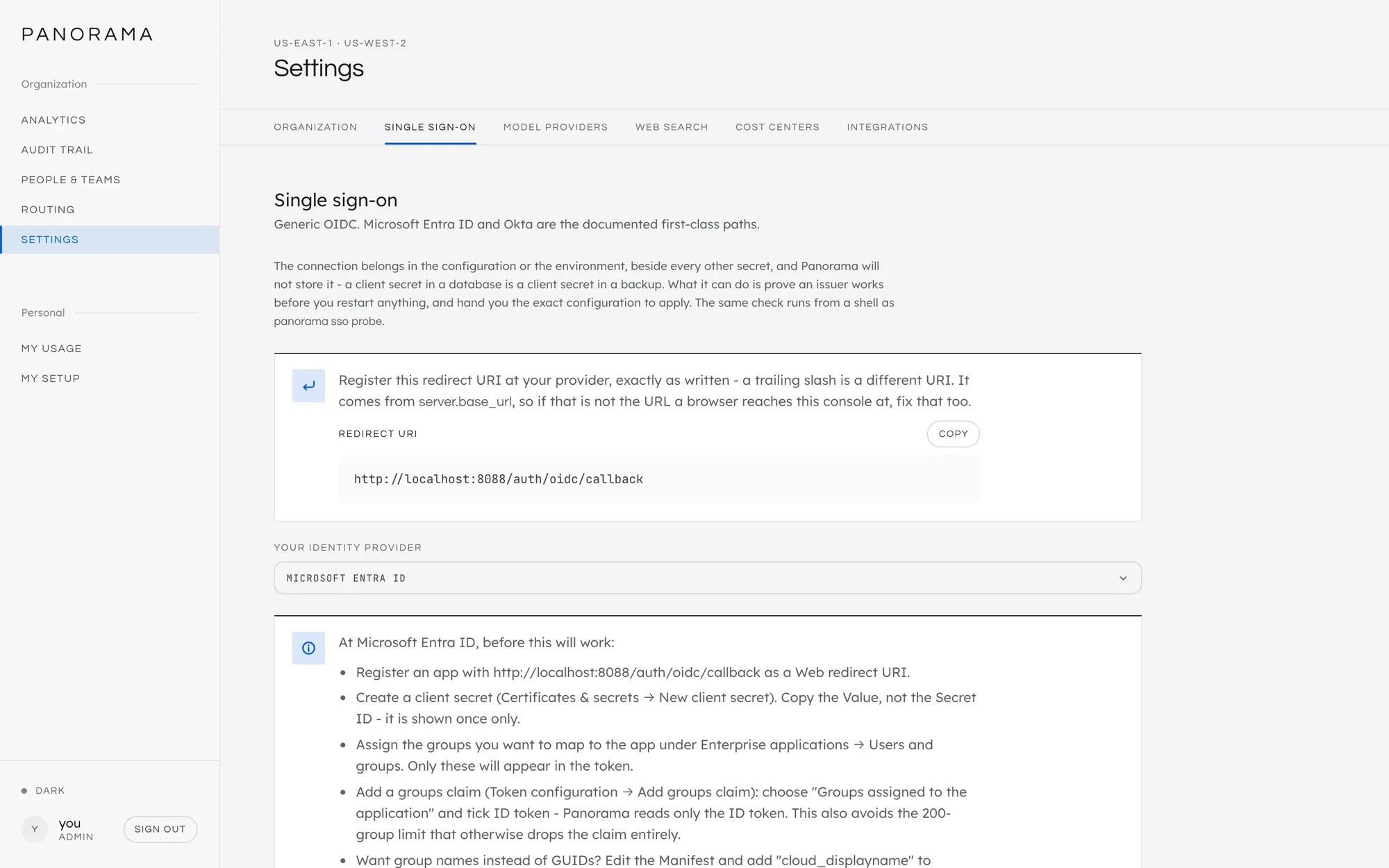
Section titled “Connect your provider”The connection lives in the deployment’s configuration, beside every other secret. The console checks it for you and never stores it.
| Setting | Environment variable | Default |
|---|---|---|
| Issuer URL | PANORAMA_OIDC_ISSUER |
not set, which means SSO is off |
| Client id | PANORAMA_OIDC_CLIENT_ID |
not set |
| Client secret | PANORAMA_OIDC_CLIENT_SECRET, or PANORAMA_OIDC_CLIENT_SECRET_FILE for a mounted file |
not set |
| Scopes | PANORAMA_OIDC_SCOPES |
openid profile email groups |
| Groups claim | PANORAMA_OIDC_GROUPS_CLAIM |
groups |
The steps:
- Open the console’s single sign-on screen. On a new deployment, enter the one-time setup code. Later, it is Settings → Single sign-on.
- Choose your identity provider. The screen shows what that provider needs, in order. Identity provider guides explains the reasons.
- Register an application at your provider, with the redirect URI
exactly as the screen shows it. It is your console’s address followed by
/auth/oidc/callback. A trailing slash makes it a different URI. - Turn on group membership in the token. Almost no provider sends groups by default. This is the step people miss, and missing it produces no error.
- Enter the issuer URL and client id, and press Check this connection. It proves the issuer answers, and prints the configuration to apply. It saves nothing.
- Apply that configuration and restart. Where it goes depends on how you
deployed:
.envon a server, or a Secrets Manager secret on AWS. - Sign in.
From a shell, step 5 is panorama sso probe, which can print the configuration
in the shape your deployment wants (-format env, ecs, shell or yaml):
panorama sso probe -preset okta -issuer https://your-org.okta.com \ -client-id panorama -format envMap groups to roles
Section titled “Map groups to roles”There are three roles. Admin configures everything. Manager sees the totals for teams they lead and sets limits inside them. Developer sees their own usage and nothing else.
Group names can only be learned from a real sign-in, so sign in once first. Then, in Settings → Single sign-on:
- Look at Groups your provider has sent. These are the exact strings that arrived in tokens, which is the only reliable source: what your provider’s own console displays is often not what it sends.
- Click a group. The Add a mapping panel opens with it filled in.
- Choose the Role and press Add mapping.
- Set Someone in no mapped group to what should happen to everybody else. Becomes a developer is the usual choice. Cannot sign in turns the mapping into a strict allowlist.
- Press Save mapping.
Roles change at each person’s next sign-in, not immediately.
You can type a group nobody has signed in from yet. Be careful: a mistyped group grants nothing and reports no error.
From a shell, panorama sso claims lists the same groups.
Keep an administrator who does not depend on a group
Section titled “Keep an administrator who does not depend on a group”Because roles are recomputed at every sign-in, an administrator whose group membership changes stops being one. To pin somebody as an administrator regardless of groups, use Settings → Single sign-on → Direct administrators → Choose, tick the accounts, and Save.
Hand back to SSO returns an account to the mapping at their next sign-in. Panorama refuses to hand back the last administrator when no group could grant the role again.
Keep this list short. A pinned role is one your identity provider can no longer revoke. Its main use is the account that owns a new deployment, before any group maps to admin. Administrator is the only role that can be pinned.
Limit sign-in to your domains
Section titled “Limit sign-in to your domains”Most providers need nothing here. An Entra ID tenant, an Okta org, a Keycloak realm or a Cognito pool already decides who can sign in, and its issuer URL names it.
Set PANORAMA_OIDC_ALLOWED_DOMAINS when that is not enough:
PANORAMA_OIDC_ALLOWED_DOMAINS=example.com,example.org- Google Workspace: required. Google has one issuer for every Google account there is, and the first account to sign in owns the deployment. Panorama refuses to start on that issuer without this. See Google Workspace.
- A tenant with guests or partner accounts you do not want in Panorama.
Write each domain bare, with no @, no https:// and no wildcard. The match
is exact, so eu.example.com is a different domain from example.com. On the
CloudFormation stack it is the OidcAllowedDomains parameter. Like the rest of
the connection it is read at startup, so restart after changing it.
Somebody outside the list sees “Your account is not in a domain that may use this Panorama deployment”, and the log says which domain was refused. No account is created.
Check it worked
Section titled “Check it worked”In Settings → Single sign-on, press Verify. It checks the redirect URI, the secret, whether anybody has signed in, whether sign-ins carried groups, and whether every mapped group has ever been seen. Each finding says what to do.
From a shell it is the same check, and it exits non-zero on failure, so it works in a deployment pipeline:
panorama sso doctorSSO troubleshooting explains every finding.
Good to know
Section titled “Good to know”- The client secret is never written to the database, which is why no screen asks for it. A secret in a database is a secret in every backup.
- Panorama records the names of the claims and groups it has seen, so it can offer them as a list. It never records a claim’s value, and keeps no record of who is in which group.
- A group may only be mapped once. Matching ignores case, so
Platformandplatformare one group. - Changing somebody’s role signs them out of their other sessions.
- Locked out?
panorama admin setupissues a one-time code at any time. It opens a session where you can fix the connection and make an account an administrator again.
This manual is licensed underCC BY 4.0. Code samples in it are part of Panorama, licensed under theGNU AGPL v3.0 only.