Quickstart
This deploys Panorama into your own AWS account with one CloudFormation template: Fargate behind an Application Load Balancer, against Aurora Serverless v2, in a VPC you already have. After the deploy, everything happens in the console. It takes about forty minutes, most of it waiting for the database to be created.
Deploying on AWS explains every parameter, the network the tasks need, and how to pin an image. Not on AWS? See Deploying on a server.
Before you start
Section titled “Before you start”- The AWS CLI v2, with credentials that can create the stack: it creates
IAM roles, so it needs
CAPABILITY_IAM. Administrator credentials on a sandbox account are fine for a first deployment. - A VPC with subnets in two availability zones. Private subnets behind a
NAT gateway are the intended shape. Public subnets work with
AssignPublicIp=ENABLED. - An ACM certificate for the hostname Panorama will answer on, in the region you deploy to.
- An application registered at your identity provider, with a client id
and a client secret: Entra ID, Okta, Keycloak, Cognito, Auth0, PingOne or
Google Workspace. Register
https://<your hostname>/auth/oidc/callbackas its redirect URI. Identity provider guides has the steps for each. - A coding tool: Claude Code, opencode or Codex CLI.
You do not need to request Bedrock model access, and the image is public, at
public.ecr.aws/dnxsolutions/panorama. If this AWS account has never used
Claude on Bedrock, submit Anthropic’s use case form in the Amazon Bedrock
console first; until then every Claude request is refused. See
Model access.
While it runs, the stack costs about US$137 a month in Sydney and about US$100 in N. Virginia, most of it the database. See What it costs, which also has a cheaper setup for an evaluation.
1. Create the stack
Section titled “1. Create the stack”The template is attached to every release, and runs that release’s version. Create the stack from the AWS console or from the command line; the steps after this one are the same either way.
In the AWS console
Section titled “In the AWS console”Switch the console to the region you are deploying to, then:
Launch stackIt opens CloudFormation’s quick-create page with the latest release’s template
and DesiredCount already set to 0. Fill in your VPC, the two pairs of
subnets, DomainName, CertificateArn and BedrockRegion, tick the box
acknowledging that the stack creates IAM resources, and press Create
stack.
Or with the AWS CLI
Section titled “Or with the AWS CLI”Every command in this guide names its region. Set REGION once in each
terminal you use; without it the AWS CLI falls back to AWS_REGION or your
profile, which in AWS CloudShell is whatever region the console was showing.
REGION=us-east-1   # the region you deploy to
curl -fsSLO https://github.com/dnxlabs/panorama/releases/latest/download/panorama.yaml
aws cloudformation deploy --region "$REGION" \  --stack-name panorama \  --template-file panorama.yaml \  --capabilities CAPABILITY_IAM \  --parameter-overrides \      VpcId=vpc-0123456789abcdef0 \      ServiceSubnetIds=subnet-aaa,subnet-bbb \      LoadBalancerSubnetIds=subnet-ccc,subnet-ddd \      DomainName=panorama.example.com \      CertificateArn=arn:aws:acm:us-east-1:111122223333:certificate/... \      BedrockRegion=us-east-1 \      DesiredCount=0
Either way
Section titled “Either way”Use your own network, hostname and certificate. BedrockRegion is where Claude
is invoked, and can be changed in the console later. Set HostedZoneId to your
Route 53 zone and the stack creates the DNS record for you.
DesiredCount=0 creates the database, the load balancer and the task
definition, and starts nothing against an empty database. It takes about
fifteen minutes, nearly all of it Aurora.
2. Migrate and start
Section titled “2. Migrate and start”The stack prints the migration command with your cluster, subnets and security
group already in it. It is the MigrateCommand output on the stack’s
Outputs tab, or, with REGION set to the stack’s region as in step 1:
REGION=us-east-1   # the region the stack is in
aws cloudformation describe-stacks --region "$REGION" --stack-name panorama \  --query "Stacks[0].Outputs[?OutputKey=='MigrateCommand'].OutputValue" --output text
Run what it prints, in a terminal or in AWS CloudShell. When the task has stopped, check that it exited zero:
aws ecs describe-tasks --region "$REGION" --cluster panorama --tasks <task-arn> \ --query "tasks[0].containers[0].exitCode"Then start the service by setting DesiredCount to 2. In the console:
Update, Use existing template, and change DesiredCount. From the CLI:
aws cloudformation deploy --region "$REGION" --stack-name panorama --template-file panorama.yaml \ --capabilities CAPABILITY_IAM --parameter-overrides DesiredCount=2Every parameter you leave out keeps the value it has, so DesiredCount is the
only one to give. The service starts two tasks, one in each availability zone.
If you did not set HostedZoneId, point your hostname at the
LoadBalancerDnsName output with a CNAME or an alias record.
3. Connect single sign-on
Section titled “3. Connect single sign-on”A new deployment has no accounts, so the first time in you use a one-time
setup code. Mint one with a one-off task, on the same network as the
service. The stack’s RunTaskNetwork output is that network, subnets, security
group and public IP setting included:
NETWORK=$(aws cloudformation describe-stacks --region "$REGION" --stack-name panorama \  --query "Stacks[0].Outputs[?OutputKey=='RunTaskNetwork'].OutputValue" --output text)
aws ecs run-task --region "$REGION" --cluster panorama --task-definition panorama \  --launch-type FARGATE --network-configuration "$NETWORK" \  --overrides '{"containerOverrides":[{"name":"panorama","command":["admin","setup"]}]}'
The code is in that task’s log stream, in CloudWatch Logs under
/aws/ecs/panorama. Open the ConsoleUrl output and enter it. That opens a
setup session: one hour, no account, and able to configure only single
sign-on and the model providers.
-
Choose your identity provider, enter the issuer URL and the client id, and press Check this connection. It proves the issuer answers, and prints the secret value to store. Nothing is saved.
-
Store it, with your client secret in place of
REPLACE_WITH_CLIENT_SECRET, in the secret the stack created for it:Terminal window SECRET=$(aws cloudformation describe-stacks --region "$REGION" --stack-name panorama \--query "Stacks[0].Outputs[?OutputKey=='OidcSecretArn'].OutputValue" --output text)aws secretsmanager put-secret-value --region "$REGION" --secret-id "$SECRET" \--secret-string '<the value the console printed>' -
Replace the running tasks, because a task reads the secret once, when it starts:
Terminal window aws ecs update-service --region "$REGION" --cluster panorama --service panorama --force-new-deployment -
When the new tasks are up, press End session, then Continue with single sign-on.
The first person to sign in becomes an administrator. Panorama does not own identities, so there is no local admin user to create. Sign in yourself first.
No identity provider to connect? You can still follow the rest of this page
by signing in with a gateway token instead: run the same one-off task with the
command ["token","create","-email","you@example.com","-role","admin"] in place
of ["admin","setup"], and paste the token from its log on the sign-in screen.
See Evaluating without an identity provider.
You land on Analytics. The setup chip in the sidebar opens a checklist of what a new deployment needs. The next two steps are its required ones.
If sign-in fails, see SSO troubleshooting.
For Google Workspace, set the OidcAllowedDomains parameter too; see
Deploying on AWS.
4. Check that Panorama can reach Bedrock
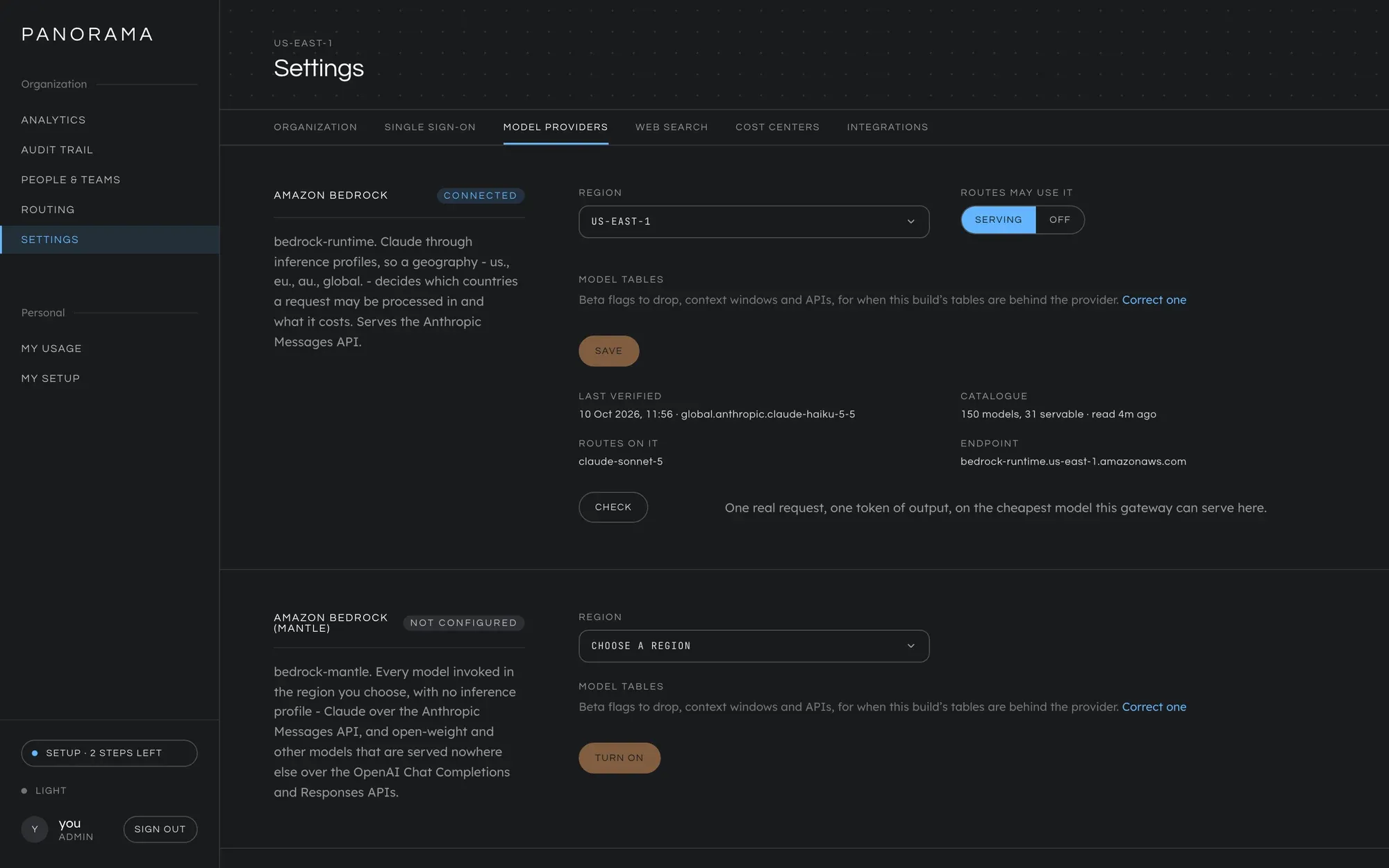
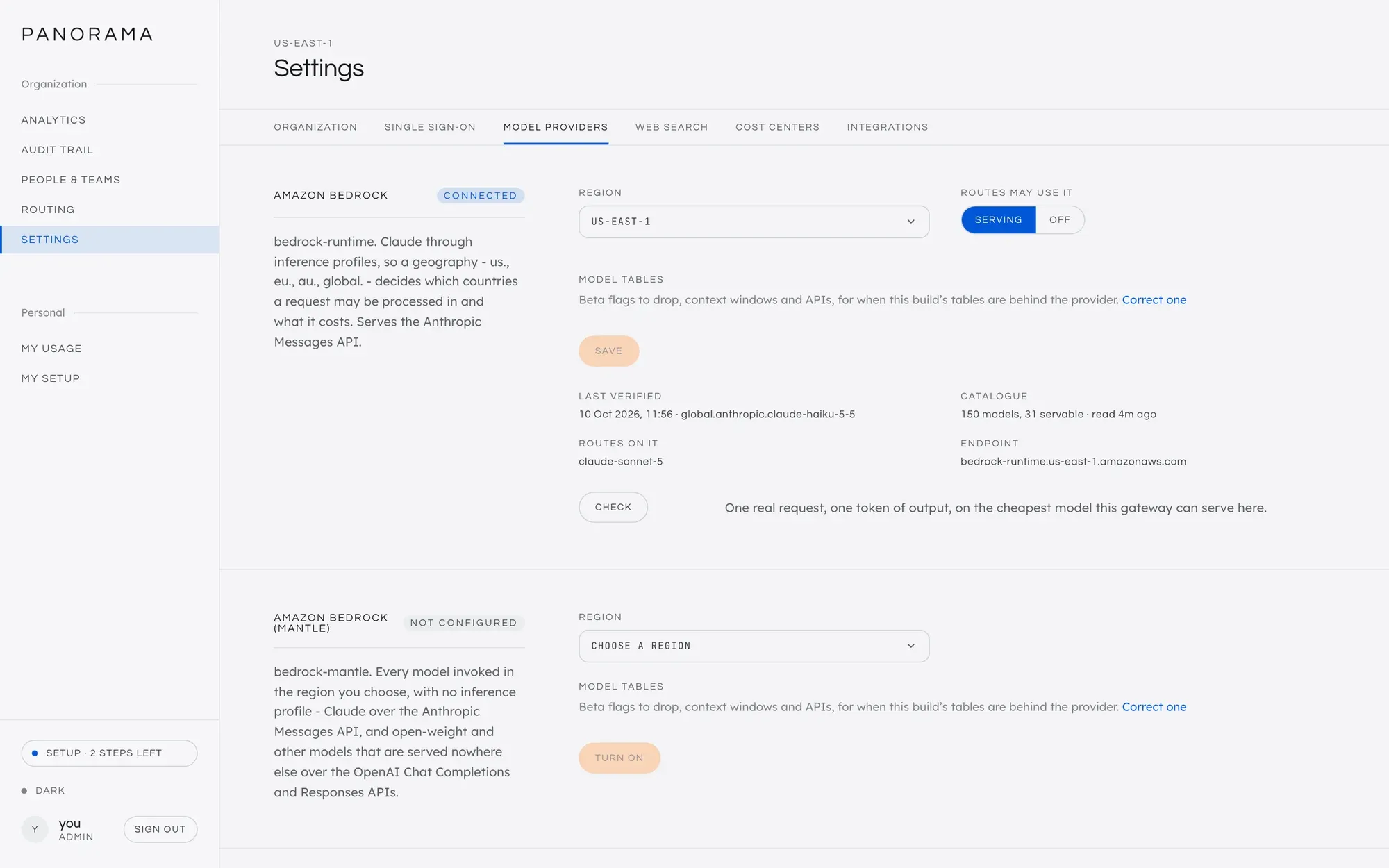
Section titled “4. Check that Panorama can reach Bedrock”Go to Settings → Model providers. There are two blocks, one for each way into Bedrock:
- Amazon Bedrock is where the Claude models are. It already has the region
you passed as
BedrockRegion, and readsnever checked. - Amazon Bedrock (Mantle) is Bedrock’s second endpoint, and the only one
that serves open-weight and other non-Claude models. It reads
not configured. Leave it alone for now. Of the three coding tools only Codex CLI needs it, and Model providers covers turning it on.
On the Amazon Bedrock block, press Check. Panorama makes one real request
for one token of output on the cheapest model it can find, with the task role
the stack created. The block changes from never checked to connected and
says which model it invoked.
If it fails, the block shows AWS’s own error and what to do about it. On a private network the usual cause is a missing route to Bedrock; see Connectivity. For the rest, see Troubleshooting.
5. Create your first route
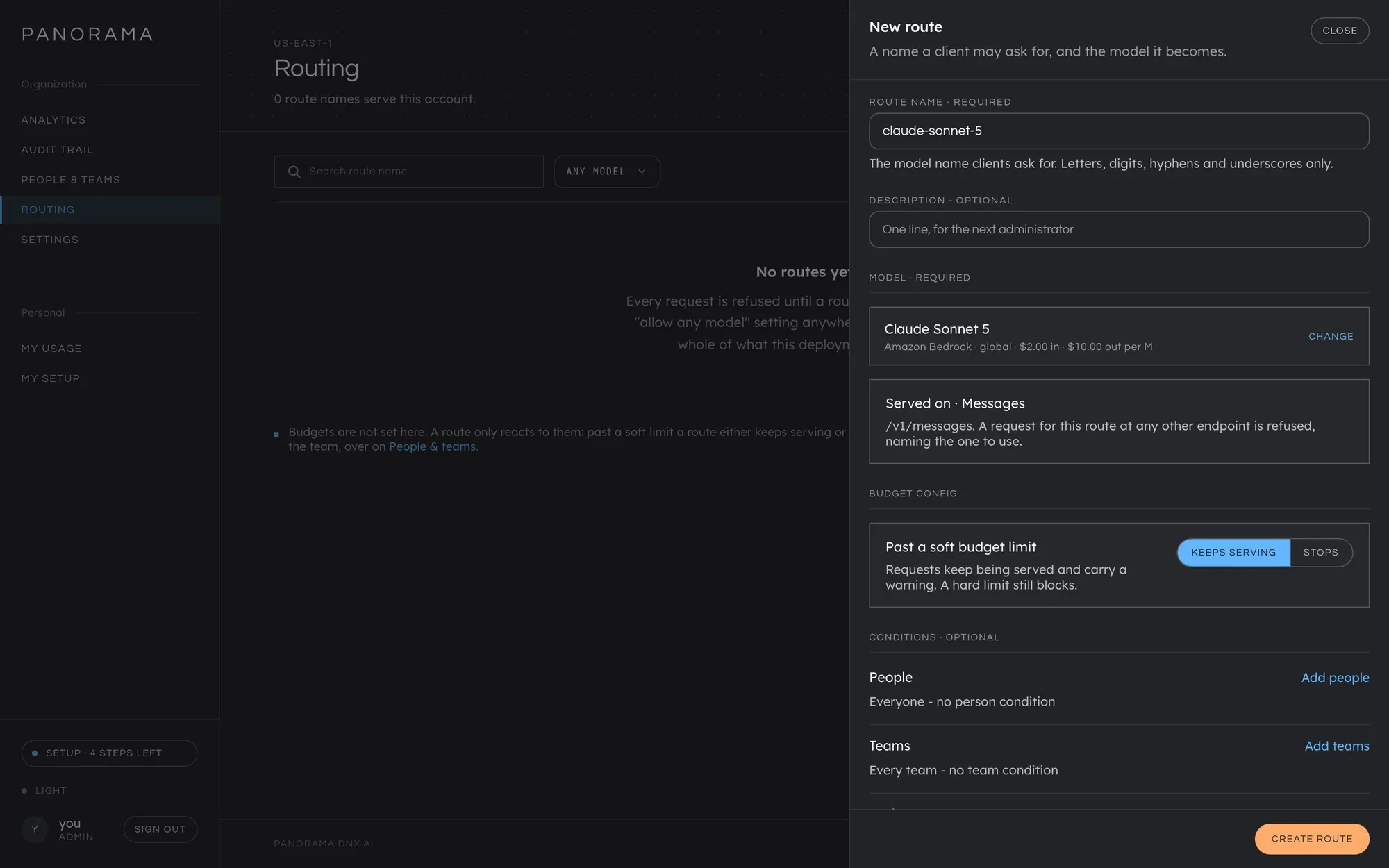
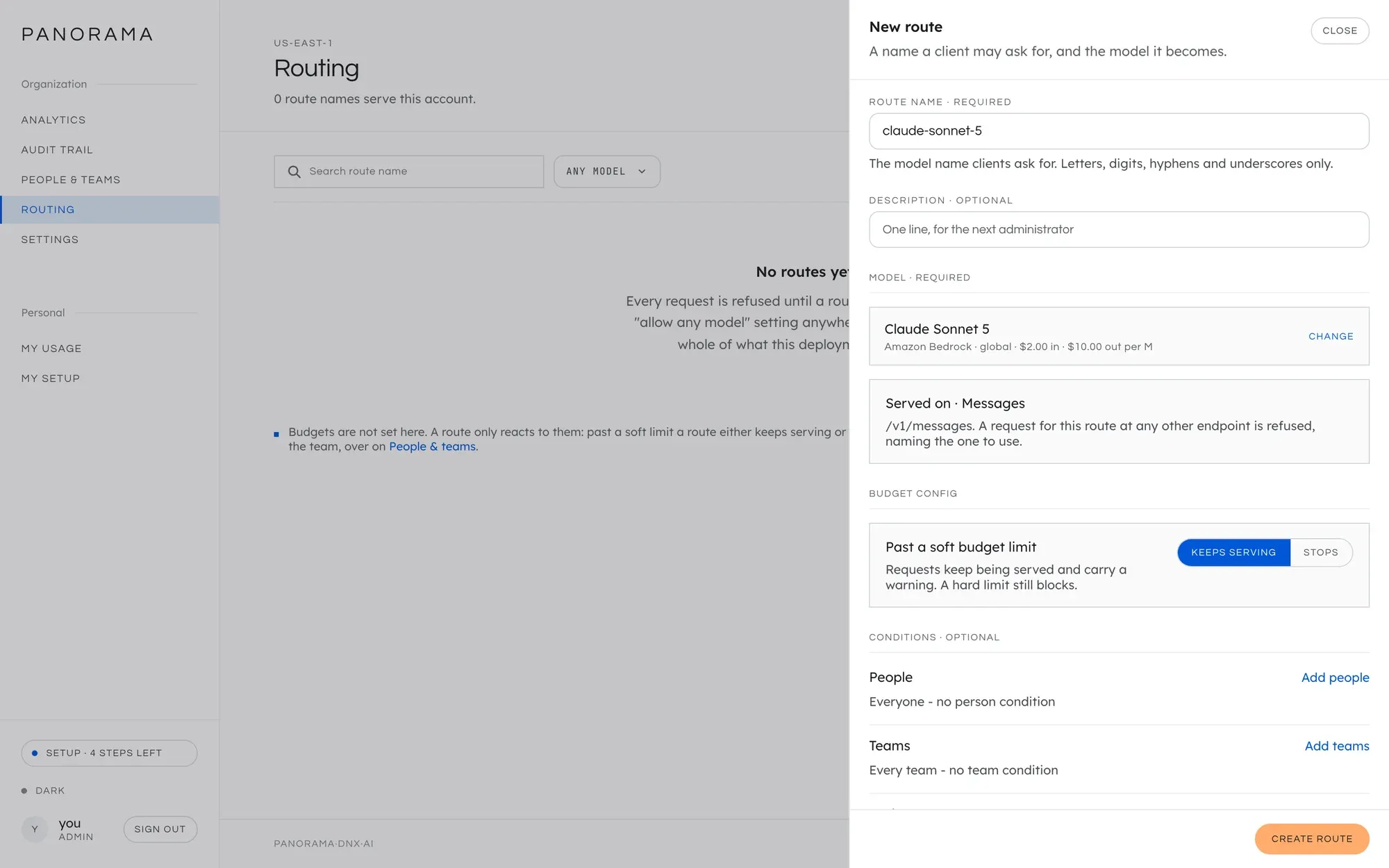
Section titled “5. Create your first route”A new deployment has no routes, and it refuses every request until one exists. A route is a name you choose and the model it runs on. Your tool asks for the name, never for a model.
- Go to Routing and press New route.
- Name it
claude-sonnet-5: a route Claude Code uses is named after its model, so Claude Code prepares its requests for that model. Any name works for opencode and Codex CLI. See Routes. - Press Browse models, search for Claude Sonnet 5, and press
Select on the
globalrow. The list is what your AWS account can actually invoke, read from Bedrock when Panorama started. - Press Create route.
Most teams later add a second, cheaper route for the background requests a coding tool makes on its own. One route is enough for now.
6. Set up your coding tool
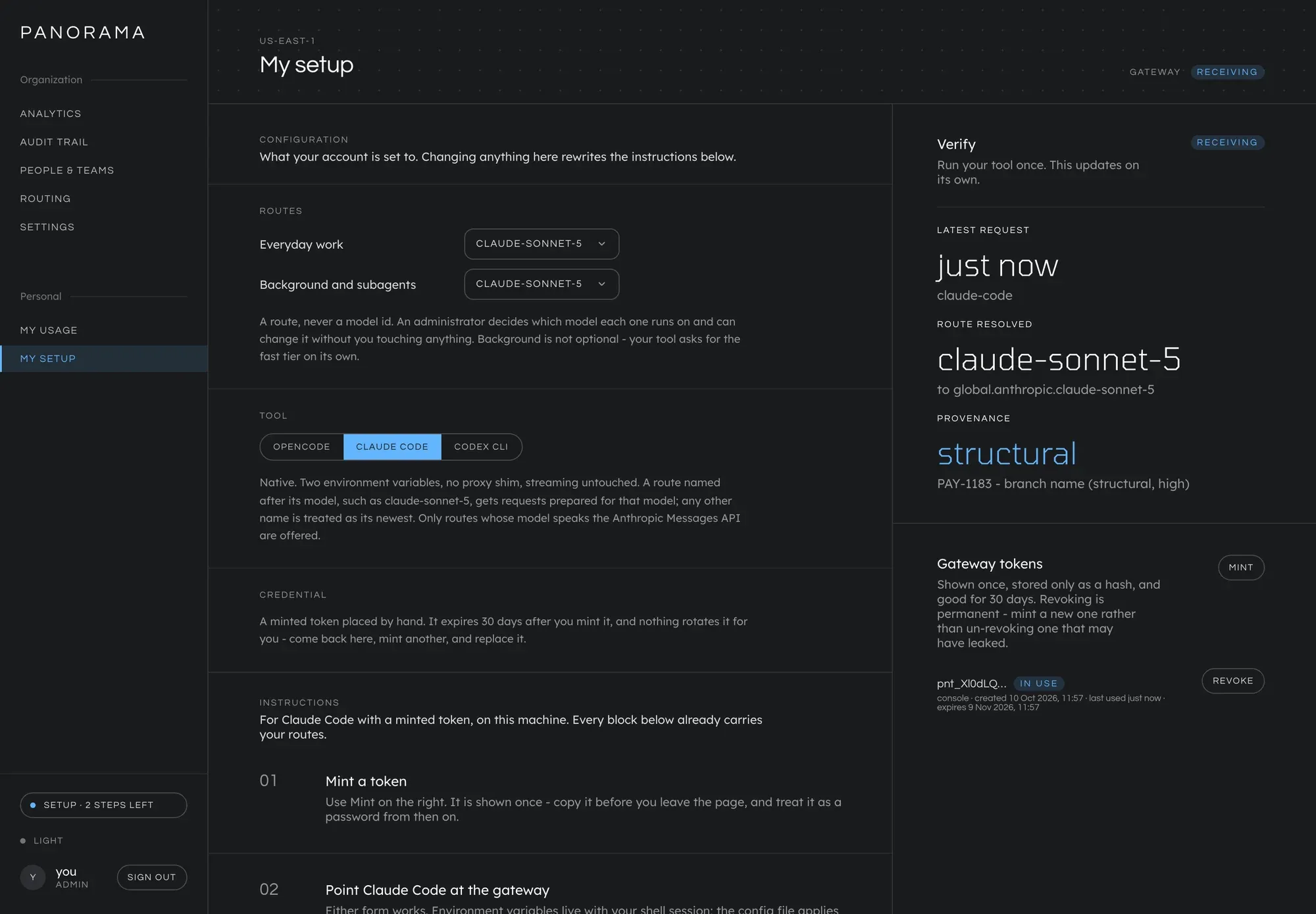
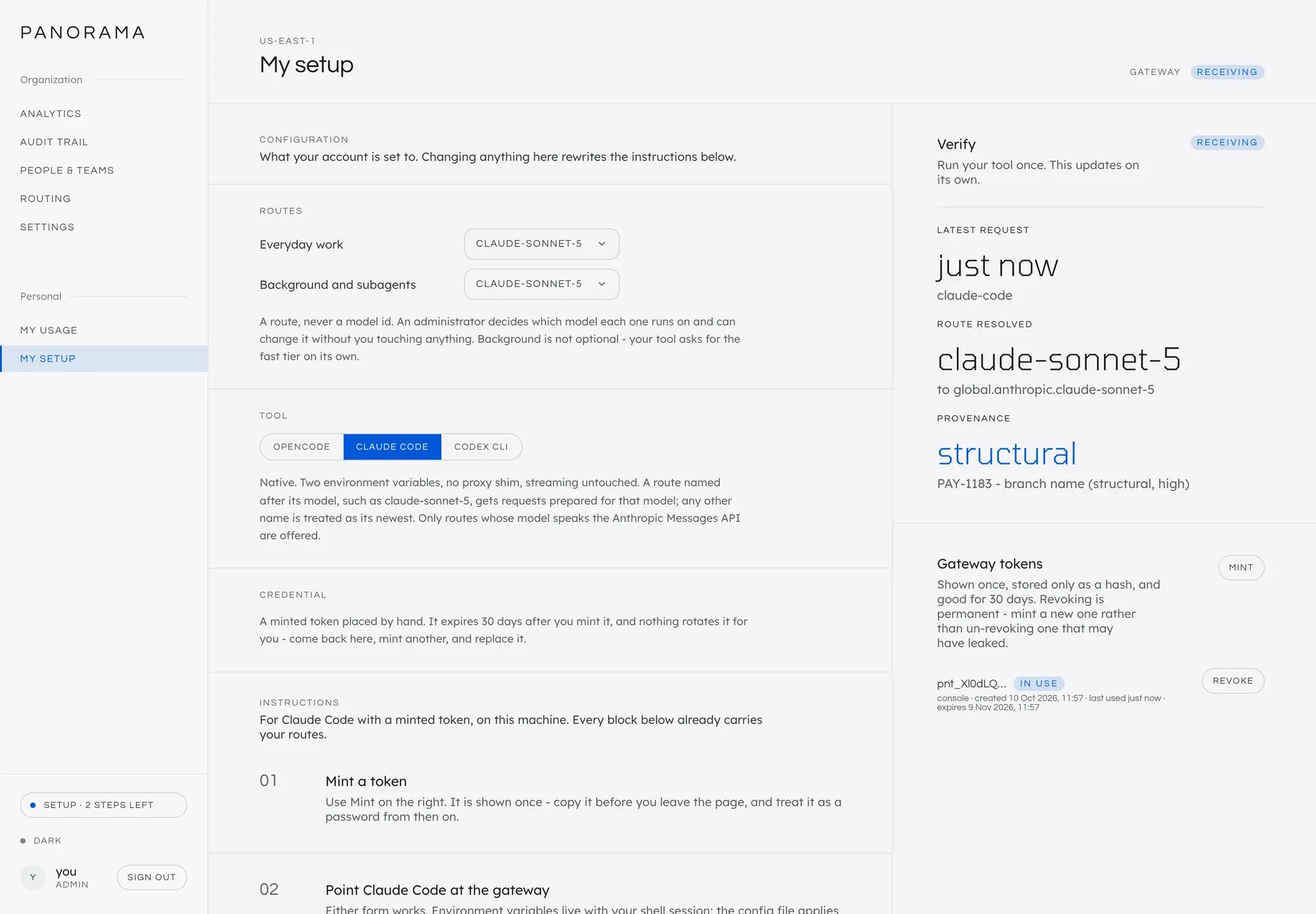
Section titled “6. Set up your coding tool”Go to My setup. This screen writes your tool’s configuration for you, with your routes and your token already in it.
- Under Routes, choose
claude-sonnet-5for everyday work, and for background work too unless you made a second route. - Under Tool, choose yours.
- Under Gateway tokens, press Mint. The token is shown once: copy it.
- Follow the Instructions the screen now prints, and start your tool from inside a git repository, on a branch.
Each tool is configured differently, and these pages explain what My setup printed and why:
| Tool | Configured by |
|---|---|
| Claude Code | Environment variables, or ~/.claude/settings.json |
| opencode | A provider block in ~/.config/opencode/opencode.json |
| Codex CLI | A provider entry in ~/.codex/config.toml. It also needs the bedrock-mantle provider turned on and a route on one of its models, because Codex cannot use a Claude route. |
Ask your tool anything. Within about ten seconds the Verify panel on My
setup changes from waiting to receiving, and shows the model your route
became and how your work was identified.
If your tool shows an error instead, the message says what to do. See When a request is refused.
7. See what it cost
Section titled “7. See what it cost”This is the part you cannot get by connecting a tool to Bedrock directly.
- Analytics has the two headline figures: what has been spent, and how much of it is attached to real work. The Work tab lists the branches and tickets behind the spend.
- Audit trail lists every request, grouped into sittings: one row for the requests one conversation made, with the repository and branch it came from, the route it asked for (and how many others it used), the model it became, how many requests it made, and their tokens and cost. Click a row to list each request.
- My usage is what an engineer sees: their own numbers and nobody else’s.
A screen does not update while you look at it. After your next request, press Refresh beside the window on any of the three to read the figures again.
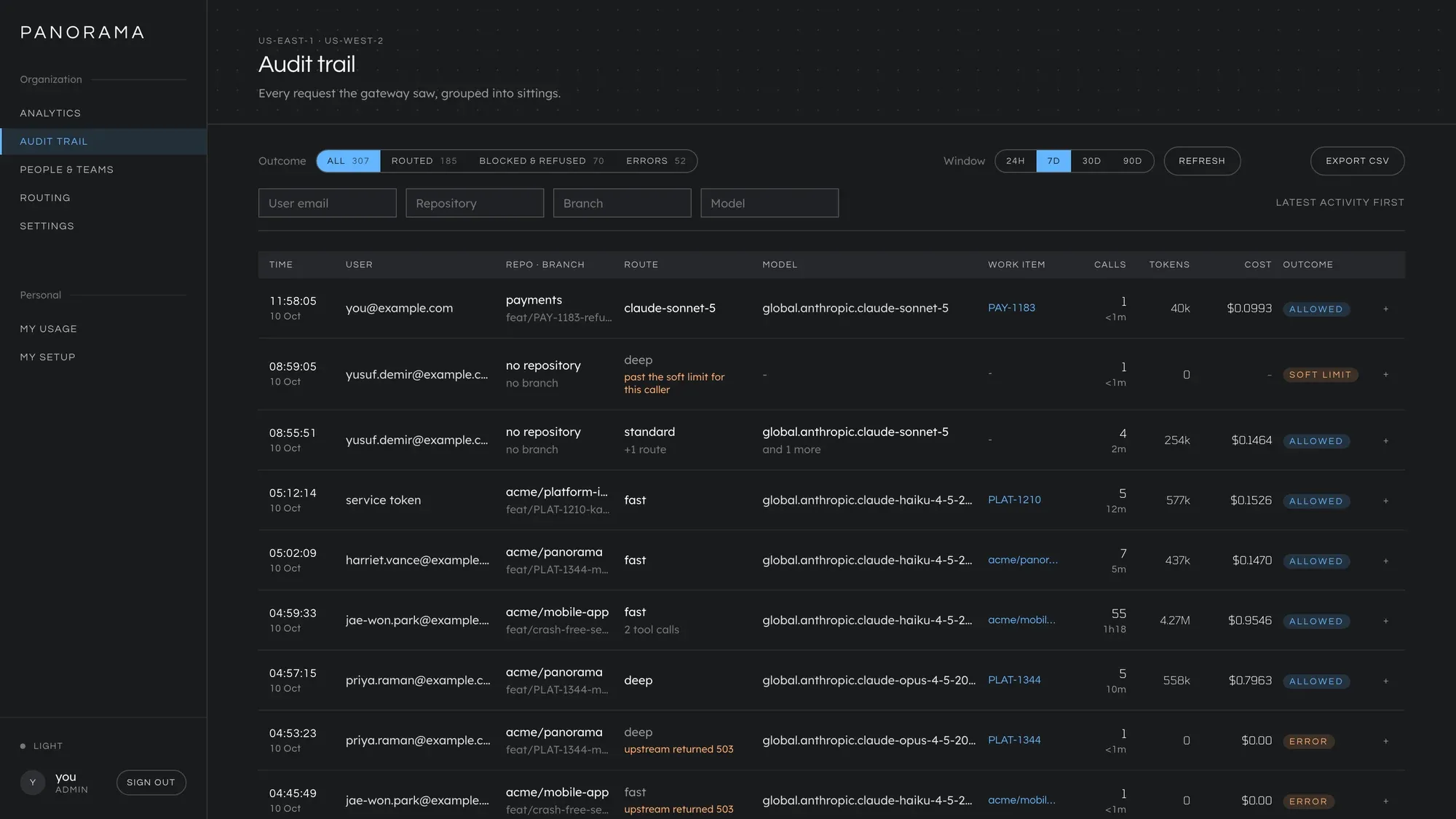
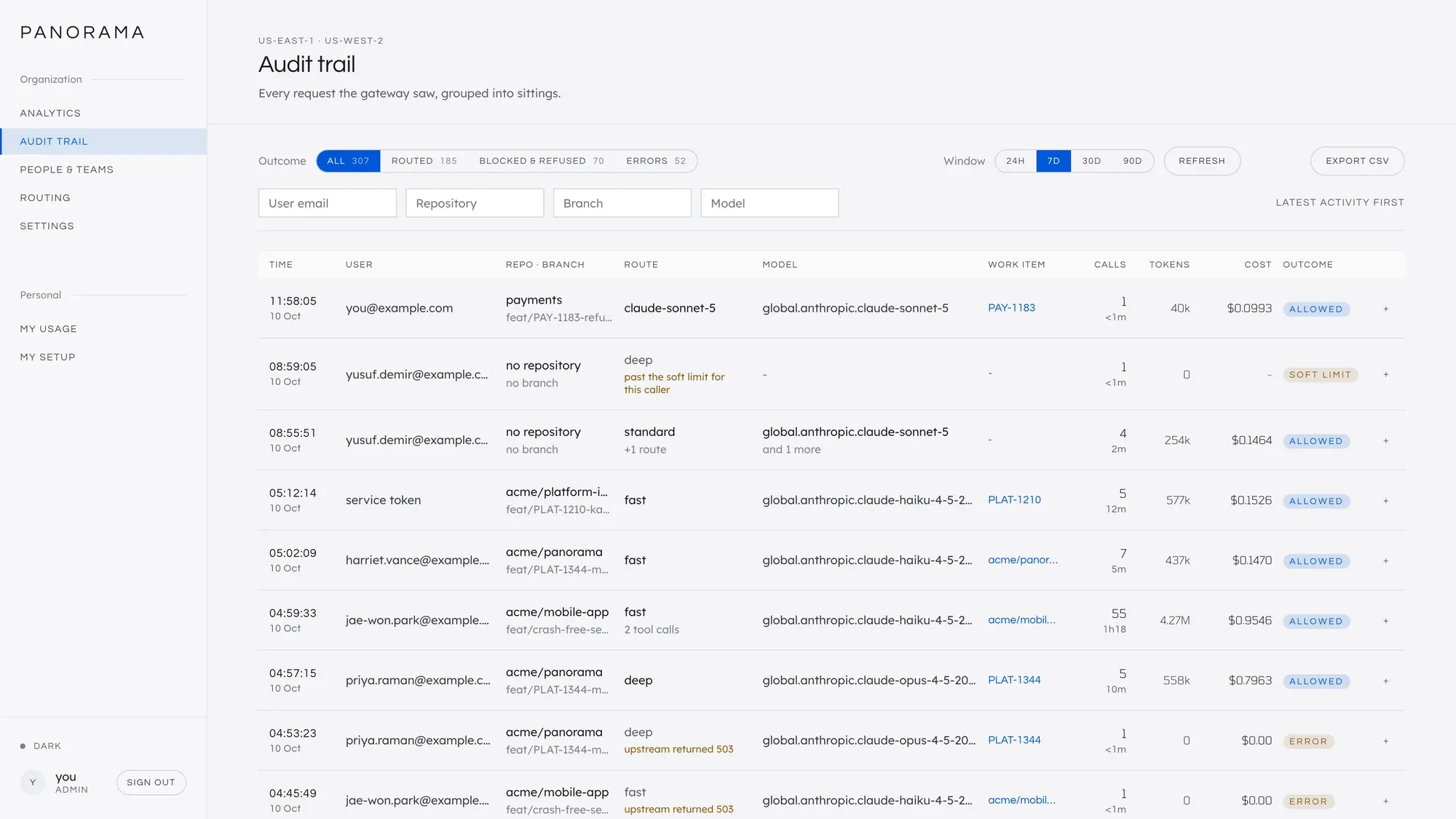
The repository and branch were read out of the request itself. Nothing was configured in your tool to produce them. See How attribution works.
Bring in your team
Section titled “Bring in your team”- Map your groups to roles, so the people who sign in next get the right one. See Map groups to roles.
- Set a budget. On People & teams, give yourself a small monthly soft limit, mark a route as stopping past it, and watch your tool get told which routes still work. See Budgets.
- Send engineers to My setup, at
https://<your hostname>/setup. See Set up your coding tool. - Map spend to a cost center. See Cost centers.
Clean up
Section titled “Clean up”aws cloudformation delete-stack --region "$REGION" --stack-name panoramaThe database is kept as a final snapshot when the stack is deleted. Delete the snapshot in the RDS console if you do not want it.
- Deploying on AWS: pinning an image for production, private networks, web search, and moving region.
- Single sign-on, which is the part of a real deployment that takes the most care.
- Upgrading when a new release is published.
This manual is licensed underCC BY 4.0. Code samples in it are part of Panorama, licensed under theGNU AGPL v3.0 only.